
Windows 11 Home vs Pro: What’s the Difference and Which Should You Choose?

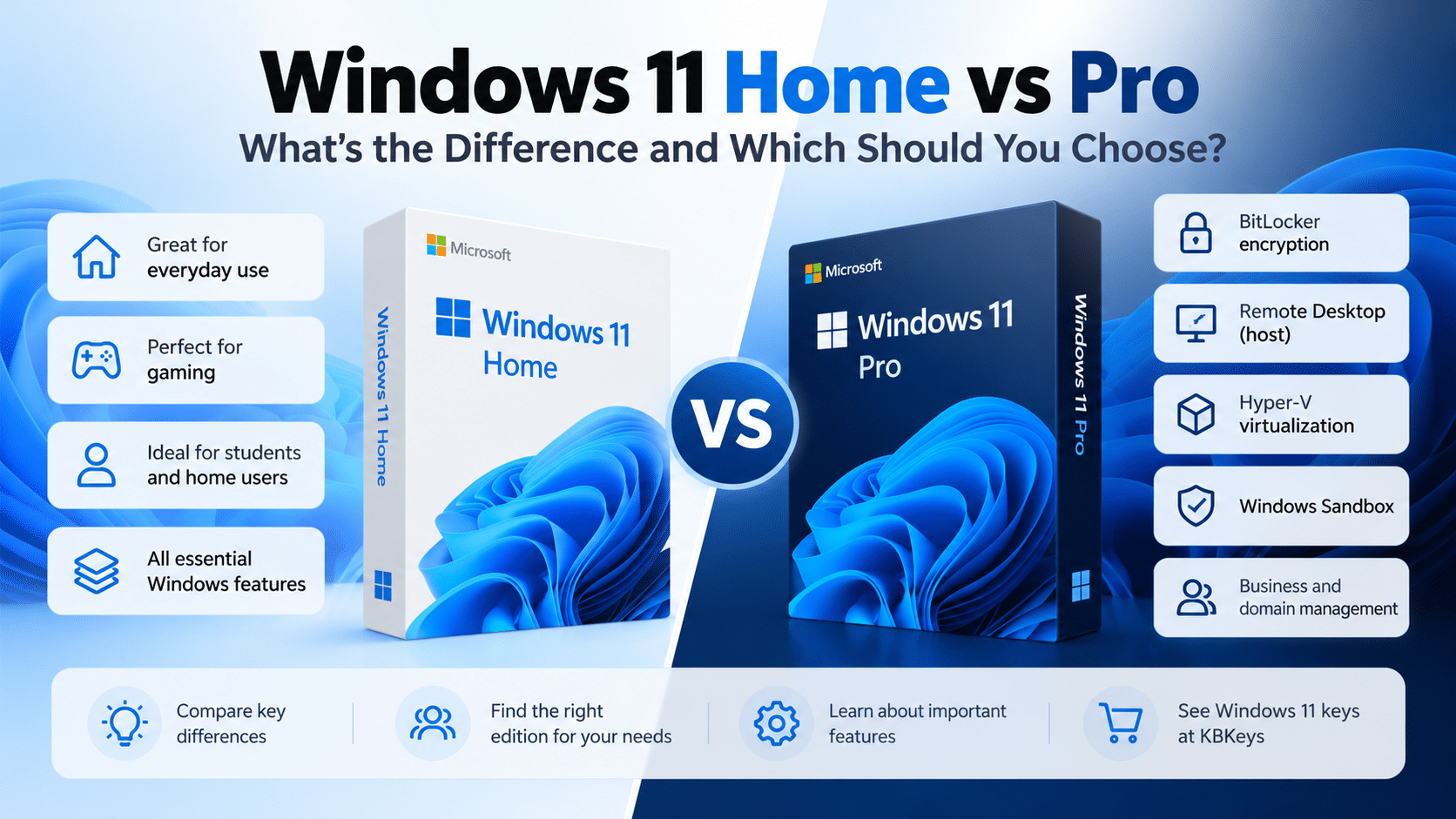
Choosing between Windows 11 Home and Windows 11 Pro depends on how you use your computer. Both editions support everyday tasks such as browsing the web, studying, working with documents, watching videos, and playing games. However, Windows 11 Pro includes additional features for remote access, virtualization, encryption management, and business environments.
For most home users, Windows 11 Home provides the features they need. Windows 11 Pro is worth considering if you specifically need its additional tools for work, IT administration, or advanced computer use.
In this guide, we’ll compare Windows 11 Home vs Pro, explain the important differences, and help you decide which edition makes sense for your needs.
This Windows 11 Home vs Pro comparison focuses on the features that matter most, helping you choose the right edition for your needs.
Quick Answer: Should You Choose Windows 11 Home or Pro?
Choose Windows 11 Home if you:
- Use your PC for everyday tasks, university studies, entertainment, or gaming.
- Browse the web, use office applications, and work with common software.
- Don’t need advanced business management or virtualization features.
- Prefer to avoid paying for features you won’t use.
Choose Windows 11 Pro if you:
- Need to host incoming Remote Desktop connections to your PC.
- Want to use the Hyper-V virtualization platform or Windows Sandbox.
- Need BitLocker Drive Encryption management features.
- Use business domain joining or organizational device management features.
The right choice depends on which features you actually need. The word “Pro” does not automatically mean that your computer will run ordinary applications or games faster.
Windows 11 Home vs Pro: Comparison Table
Here is a quick comparison of the main differences.
| Feature | Windows 11 Home | Windows 11 Pro |
|---|---|---|
| Everyday computing | Yes | Yes |
| Common Windows applications | Yes | Yes |
| Windows Security and firewall | Yes | Yes |
| Windows Hello on compatible hardware | Yes | Yes |
| Everyday gaming | Yes | Yes |
| BitLocker Drive Encryption management | Not included as a Pro feature | Included |
| Device Encryption | Available on supported devices | Available on supported devices |
| Host incoming Remote Desktop sessions | No | Yes |
| Hyper-V virtual machines | Hyper-V host feature unavailable | Supported on compatible hardware |
| Windows Sandbox | Not included | Available on supported hardware |
| Business domain joining and management | More limited | Includes additional business capabilities |
| Upgrade to Pro later | Yes, through an eligible upgrade | Already on Pro |
The main Windows 11 Home vs Pro differences involve advanced security, remote access, virtualization, and business management features.
Feature availability can depend on the device, hardware, Windows configuration, and organizational requirements. Check Microsoft’s official Windows 11 comparison for the current edition details.
What Do Windows 11 Home and Pro Have in Common?
Before paying for Pro, it is useful to understand what both editions can already do.
Everyday computing
Both editions support common activities such as browsing the web, watching videos, working with documents, attending online classes, and using compatible desktop applications.
For typical personal use, Home provides the essential Windows experience without requiring the additional management features found in Pro.
Windows Security
Windows 11 Home and Pro include core security capabilities, such as Windows Security and firewall protection. Both editions also support features such as Secure Boot and Windows Hello when the device’s hardware and configuration meet the requirements.
Pro adds certain capabilities for business environments and advanced security management. However, that does not mean Home has no meaningful security protection.
Gaming
Both editions support Windows 11 gaming technologies and compatible PC games. Your processor, graphics card, memory, drivers, game settings, and the individual game have a much greater influence on gaming performance than the edition name alone.
If gaming is your primary reason for considering Pro, check whether you need any of its specific additional features before paying for the upgrade.
The Biggest Differences Between Windows 11 Home and Pro
1. BitLocker Drive Encryption and Device Encryption
Encryption helps protect data stored on a computer, particularly when a device is lost or stolen.
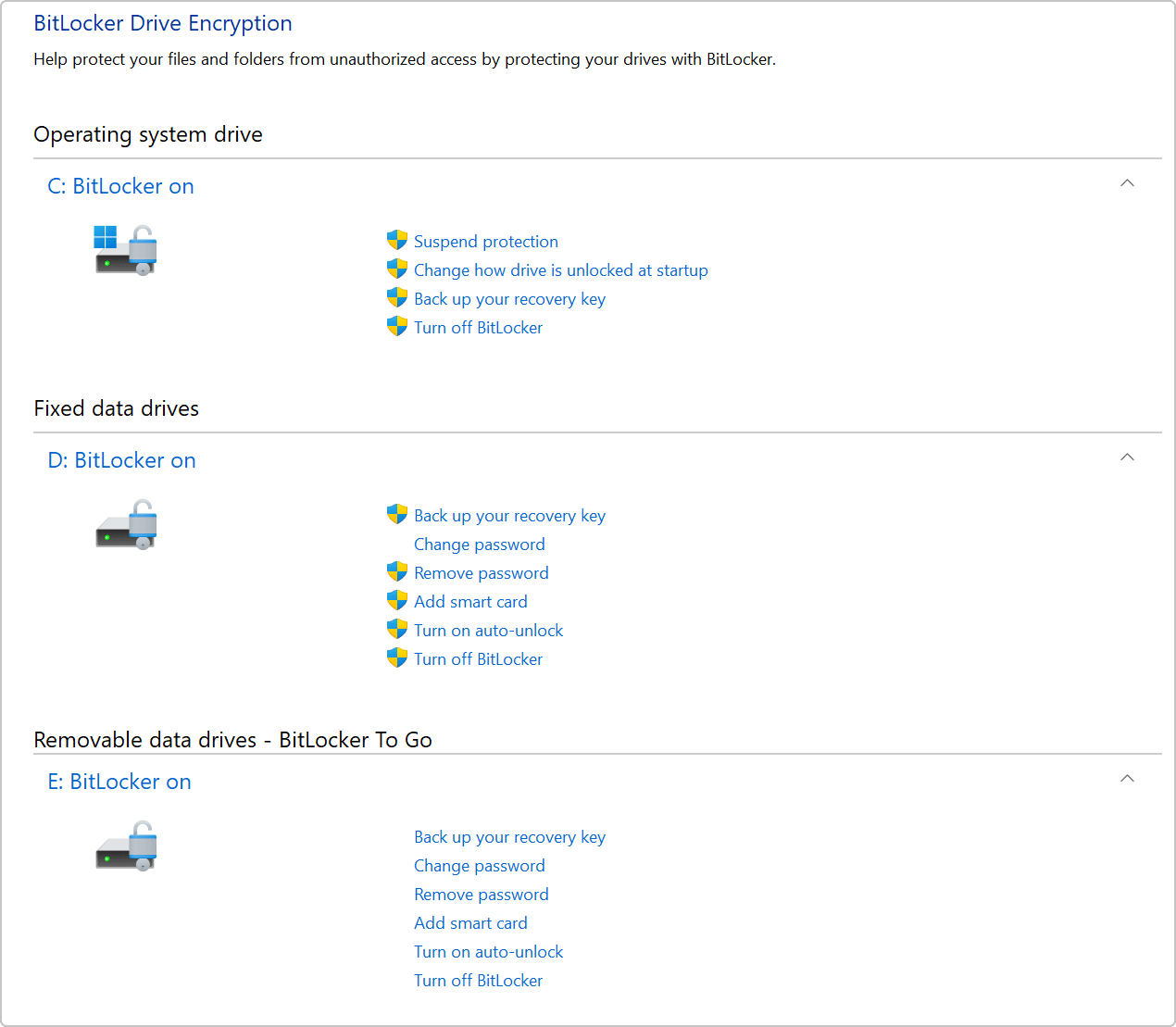
Windows 11 Pro includes BitLocker Drive Encryption management capabilities. These can be useful for people who need more control over drive encryption and recovery in professional or business environments.
However, it is important to distinguish BitLocker Drive Encryption from Device Encryption. Device Encryption is available on a wider range of Windows devices, including some Home devices, depending on their hardware and configuration.
Therefore, it would be inaccurate to say that every Windows 11 Home computer has no encryption capability.
Learn more in Microsoft’s guide to Device Encryption in Windows.
Who benefits from Pro?
People who specifically require BitLocker Drive Encryption management or need to meet their organization’s security requirements may have a practical reason to choose Pro.
For ordinary home use, check the encryption capabilities already available on your device before deciding to upgrade.
2. Remote Desktop
Remote Desktop lets you connect to and work on a computer from another device.
One important difference is that Windows 11 Pro can host incoming Remote Desktop sessions. Windows 11 Home cannot act as the Remote Desktop host using Microsoft’s built-in Remote Desktop feature.
Home can still be used as a client to connect to another supported computer.
For example, someone who needs to access their office PC remotely may benefit from having Pro on the computer being accessed. Someone who only connects from their laptop to another computer may not need Pro on the connecting laptop.
See Microsoft’s instructions for using Remote Desktop.
3. Hyper-V Virtualization
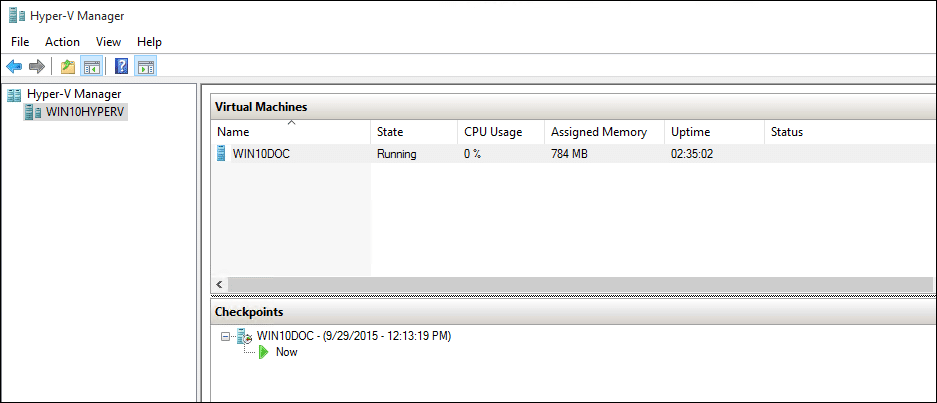
Hyper-V is Microsoft’s virtualization platform. It allows supported computers to run virtual machines, which behave like separate computers inside the host system.
Virtual machines can be useful for software testing, development, IT learning, and certain technical workflows.
Windows 11 Home does not include the Hyper-V host feature. Windows 11 Pro supports Hyper-V on compatible hardware.
If you regularly need to run multiple operating systems in virtual machines using Hyper-V, Pro may be the better fit.
If you never use virtual machines, this feature alone may not justify upgrading.
Read Microsoft’s Hyper-V installation guide for technical requirements.
4. Windows Sandbox
Windows Sandbox provides an isolated desktop environment for supported testing tasks. It can be useful when someone needs to examine software or perform experiments without using their regular desktop environment.
Windows Sandbox is available on eligible Pro and other supported editions, but it is not included in Windows 11 Home.
It also requires compatible hardware and configuration. Having Pro alone does not guarantee that every device meets these requirements.
For software developers, technical users, and IT professionals who use this feature, the edition difference may matter. Most everyday users will probably never need it.
Learn more from Microsoft’s Windows Sandbox documentation.
5. Business and Organizational Management
Windows 11 Pro includes additional business capabilities, including support for joining a work or school domain and Microsoft Entra ID environments, subject to the relevant setup and organizational requirements.
Pro also provides management capabilities that can be useful for IT administrators who configure and maintain multiple computers.
For example, an organization may need to manage user access, apply device policies, connect computers to its environment, or maintain consistent security settings.
A person using one personal computer at home is less likely to need these features.
Microsoft provides an overview of these additional capabilities in its Windows 11 Home and Pro comparison.
Windows 11 Home vs Pro for Gaming
Not necessarily.
Windows 11 Home and Pro both support gaming, compatible hardware, and common Windows gaming technologies. Installing Pro does not automatically give a computer a more powerful processor, a faster graphics card, or a higher frame rate.
Actual gaming performance depends on several factors:
- Processor and graphics card performance.
- Available memory and storage performance.
- Graphics drivers and game updates.
- In-game graphics settings and resolution.
- Background applications and system configuration.
A gaming enthusiast might choose Pro for a separate reason, such as needing Hyper-V or a particular remote-access capability. That is different from choosing Pro purely to improve gaming performance.
Our recommendation: If your computer is mainly for gaming, browsing, streaming, and everyday applications, start by checking whether Home already meets your needs. Consider Pro when you can identify an additional feature you will actually use.
Who Should Choose Windows 11 Home?
When comparing Windows 11 Home vs Pro for everyday use, Home is usually sufficient if you don’t need the additional Pro features.
It may be the better fit if you are:
- A university student using a PC for assignments, research, classes, and entertainment.
- A home user who browses the web, watches videos, and uses common applications.
- A gamer who does not need Pro-specific features.
- Someone purchasing a computer for general personal use.
- A user who wants the core Windows experience without additional business-management tools.
You don’t need to purchase Pro just because it sounds more advanced. The better decision is to match the edition to your actual requirements.
Who Should Choose Windows 11 Pro?
The choice between Windows 11 Home vs Pro becomes clearer when you identify the advanced features you will actually use.
It may be suitable if you are:
- A remote worker who needs the PC being accessed to host incoming Remote Desktop sessions.
- A developer or IT professional who needs the Hyper-V host feature.
- A technical user who wants to use Windows Sandbox on compatible hardware.
- A professional who requires BitLocker Drive Encryption management.
- A business user whose organization requires domain joining or particular device-management capabilities.
Some users may need more than one of these features. In those cases, choosing Pro from the beginning can be more convenient than upgrading later.
If your organization requires a particular Windows edition or security configuration, follow its IT requirements before purchasing a license.
Can You Upgrade from Windows 11 Home to Pro Later?
Yes. An eligible Windows 11 Home installation can be upgraded to Windows 11 Pro without having to buy an entirely new computer.
Understanding the Windows 11 Home vs Pro upgrade path can help you choose the right edition now or move to Pro when your needs change.
Microsoft provides an upgrade route through the Microsoft Store. If you already have a compatible Windows 11 Pro product key, you can also use the activation settings.
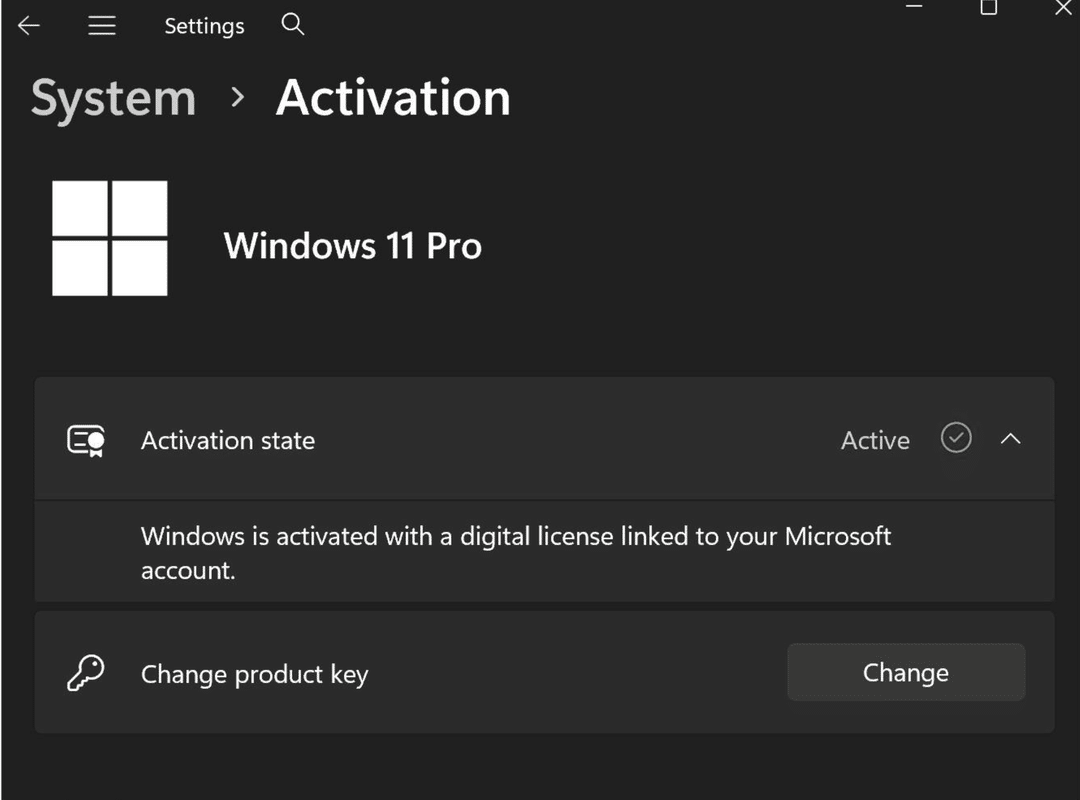
To check your current edition:
- Open Settings.
- Select System.
- Select Activation.
- Review the Windows edition and activation status.
To upgrade, follow Microsoft’s official guide to upgrading Windows Home to Pro.
The process and cost depend on the upgrade route and license you have. Before purchasing a key, confirm that it matches the edition you need. A Home license does not activate an installation of Pro, and a Pro license does not mean an installed Home edition has already been upgraded.
Ready to upgrade? Follow our step-by-step guide on how to upgrade Windows 11 Home to Pro to check your options and complete the upgrade.
For activation help, see Microsoft’s Windows activation guide.
What Should You Check Before Buying a Windows 11 License?
Before purchasing any Windows license, take a few minutes to verify the details.
Check the edition
Confirm whether your computer currently runs Windows 11 Home or Pro, and whether you need a new installation or an edition upgrade.
Understand the license terms
Review what the seller is offering, including the license type, applicable usage rights, transfer restrictions, and any conditions that apply to your purchase. A label such as “Retail” or “OEM” should be supported by clear terms rather than assumed to guarantee particular rights.
Review delivery and support
Check how the product is delivered, what information is provided with the order, and what support is available if activation fails or you purchase the wrong edition.
Read the refund and return policy
Understand the seller’s conditions before ordering, including what happens if a key fails or an incompatible edition is purchased.
Keep your order information
Retain your receipt, order details, and activation instructions so you can refer to them if you need help.
Successful activation by itself is not a complete explanation of a license’s usage rights. If you have questions about a license or your Windows activation status, consult Microsoft’s documentation and the seller’s stated terms.
If you are comparing editions for your PC, you can also review the available options in the KBKeys Windows 11 category, including the Windows 11 Home product page and the Windows 11 Pro product page. Review the details and conditions on the relevant product page before making a purchase.
Frequently Asked Questions
Is Windows 11 Pro faster than Windows 11 Home?
Not simply because it is Pro. Both editions support everyday computing. Performance depends primarily on the computer’s hardware, drivers, software, settings, and workload.
Is Windows 11 Pro worth it for gaming?
It is not necessary for most gaming setups. Both editions support common Windows gaming technologies. Pro may be worthwhile if you need a separate feature such as Hyper-V or business management, but don’t choose it solely because you expect higher frame rates.
Does Windows 11 Home have encryption?
Some Windows 11 Home devices support Device Encryption, depending on their hardware and configuration. Pro additionally includes BitLocker Drive Encryption management capabilities. Check your device and edition before deciding that an upgrade is necessary.
Can Windows 11 Home use Remote Desktop?
Windows 11 Home cannot host incoming connections using Microsoft’s built-in Remote Desktop feature. However, Home can act as a client to connect to another supported computer.
Can I upgrade from Windows 11 Home to Pro later?
Yes. Microsoft supports upgrading an eligible Windows 11 Home installation to Pro through the Microsoft Store or with a compatible Pro product key. Review Microsoft’s official upgrade instructions before beginning.
Do I need Windows 11 Pro for university or office work?
Usually not for ordinary study, browsing, documents, video calls, and common productivity applications. Pro becomes more relevant if your studies or job specifically require virtualization, Remote Desktop hosting, or business-management features.
Should I buy Home now and upgrade later if needed?
That can be a sensible approach if Home meets your current needs and you do not require Pro-specific features. Before buying either edition, confirm the license terms and the upgrade route available for your situation.
Final Recommendation: Windows 11 Home vs Pro
Windows 11 Home is sufficient for many everyday users, including students, home users, and gamers who do not need advanced management tools.
Windows 11 Pro is a better fit when you specifically need capabilities such as hosting Remote Desktop sessions, running Hyper-V virtual machines, using Windows Sandbox on compatible hardware, managing BitLocker Drive Encryption, or joining a business-managed environment.
The best choice is not automatically the more expensive or advanced edition. It is the edition that meets your requirements without paying for features you won’t use.
When comparing Windows 11 Home vs Pro, choose the edition that provides the features you actually need rather than paying for extras you may never use.
Before making a purchase, compare the features, confirm your installed Windows edition, and review the applicable license terms.
For a closer look at the available editions, visit the KBKeys Windows 11 category and compare the Windows 11 Home and Windows 11 Pro options.