
How to Upgrade Windows 11 Home to Pro: Step-by-Step Guide

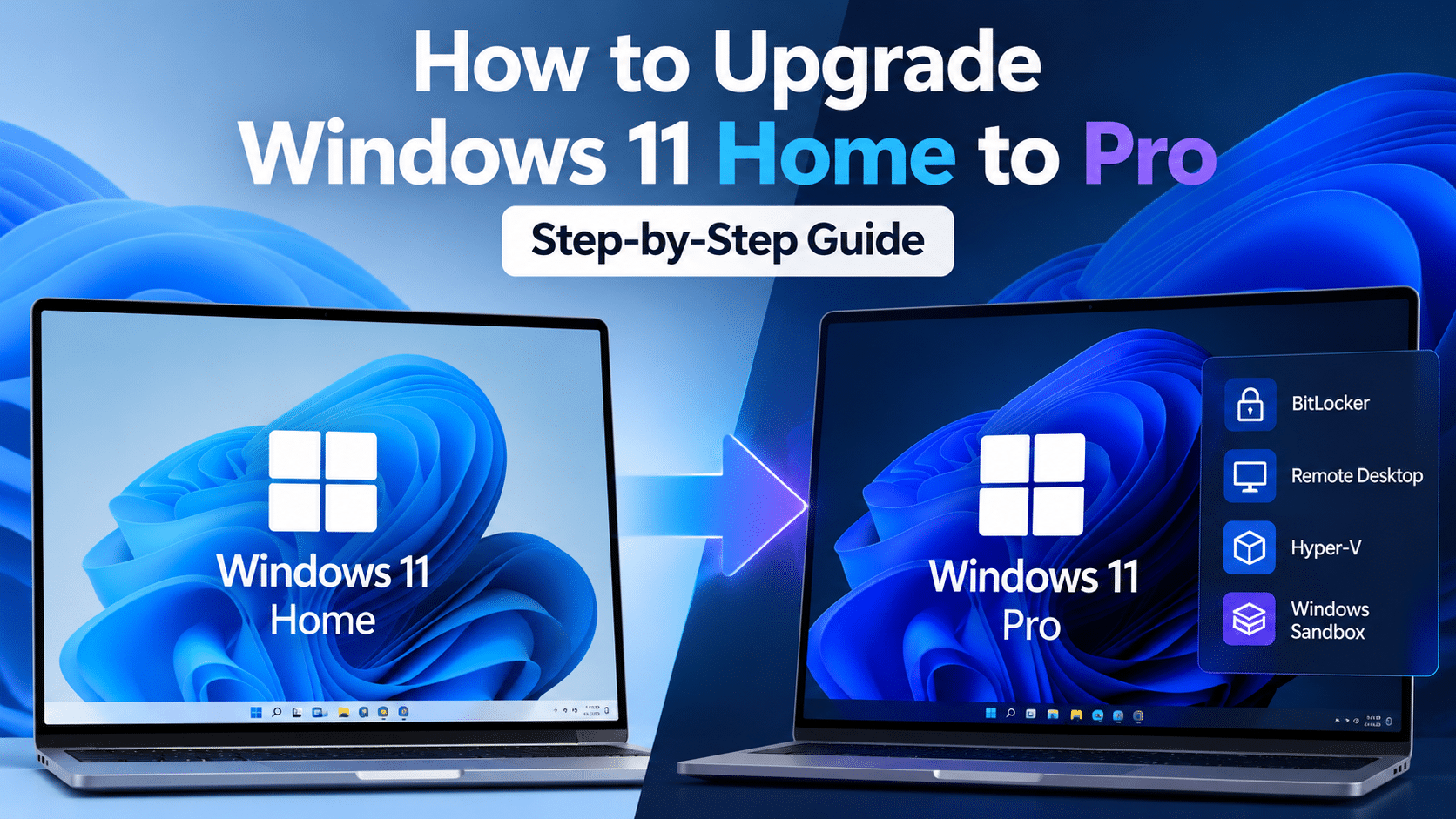
Upgrading from Windows 11 Home to Pro gives you access to additional Windows features, including Remote Desktop hosting, Hyper-V virtualization, Windows Sandbox, and advanced BitLocker management capabilities on supported devices.
If you need one of these features for work, development, or personal use, upgrading may be the right choice. The process is usually straightforward when you have a compatible Windows 11 Pro product key or an eligible digital license.
In this guide, we’ll explain how to upgrade Windows 11 Home to Pro, how to check your current edition, how to use a product key, and what to do if activation doesn’t work as expected.
Before You Upgrade from Windows 11 Home to Pro
Before starting the upgrade, take a few minutes to check your Windows edition and activation status. This can prevent confusion if you have a key that doesn’t match your installed edition.
1. Check your current Windows edition
To check which edition is installed:
- Open Settings.
- Select System.
- Select Activation.
- Review the Windows edition and activation status displayed on the page.
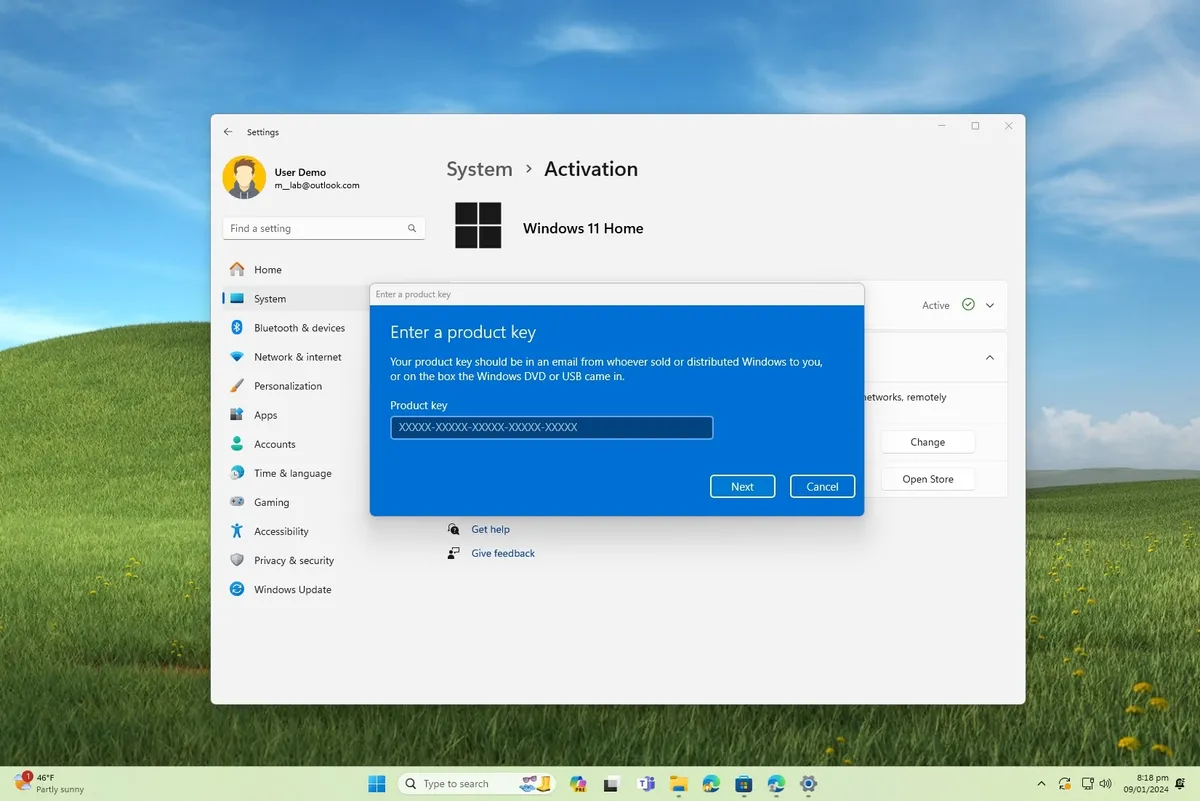
Confirm that the installed edition is Windows 11 Home.
If your computer already runs Windows 11 Pro, you don’t need to upgrade from Home. If the edition or activation status is different from what you expected, resolve that first.
You can find Microsoft’s official instructions in the Windows activation guide.
2. Confirm that your license is suitable
There are two common routes for upgrading:
- A Windows 11 Pro product key: Enter a valid Pro key through Windows Activation settings.
- The Microsoft Store: Purchase the Pro upgrade through the Store if you don’t already have an appropriate license.
A product key must match the edition you want to activate. A Windows 11 Home key cannot activate Windows 11 Pro.
If you already own a digital license for Windows 11 Pro but have Home installed, the Windows Activation troubleshooter may provide an upgrade option, depending on your situation.
3. Prepare your computer
Before starting:
- Save your work and close open applications.
- Back up important personal files.
- Connect to a reliable internet connection.
- Make sure you can access an administrator account.
- Keep your product key and purchase information available, if applicable.
The upgrade process may take some time, and your computer may restart. Avoid interrupting the process while Windows is updating the edition.
Method 1: Upgrade Windows 11 Home to Pro with a Product Key
Use this method if you already have a compatible Windows 11 Pro product key.
Important: Microsoft’s manual product-key upgrade method applies to an activated copy of Windows 11 Home. If Windows Home isn’t activated, resolve the activation issue first. Alternatively, review Microsoft’s Microsoft Store upgrade instructions to see which route is available for your device.
Step 1: Open Activation settings
- Select Start.
- Open Settings.
- Select System.
- Open Activation.
Check that Windows currently shows the Home edition.
Step 2: Select Change product key
On the Activation page, find Change product key and select the Change button.
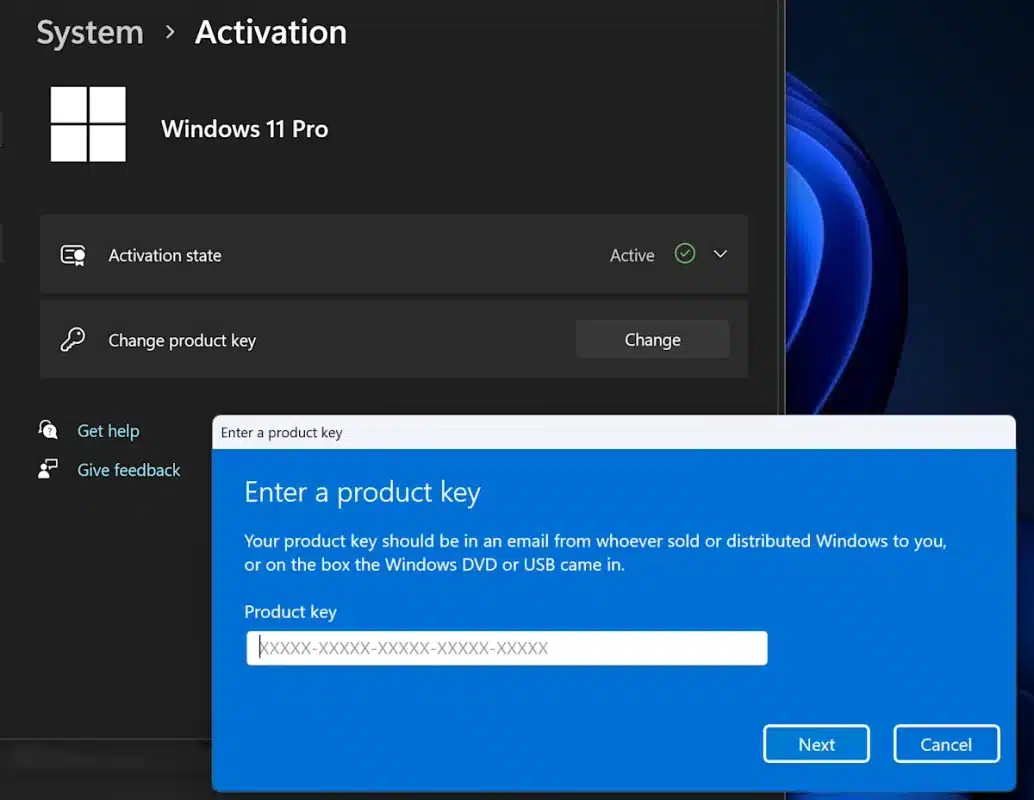
Windows may ask for administrator permission. If prompted, use an administrator account to continue.
Step 3: Enter your Windows 11 Pro product key
Enter the 25-character Windows 11 Pro product key in the box provided.
Check the characters before continuing. Make sure the key belongs to the correct Windows edition and is intended for your device and use.
Do not share your complete product key in screenshots, public posts, or support requests.
Step 4: Start the upgrade
Select Next and follow the on-screen instructions.
Windows will process the edition change. Depending on your system and the current configuration, it may take some time and require a restart.
Keep the computer connected to power where appropriate, and wait for the process to complete.
Step 5: Check the installed edition
After Windows finishes the upgrade:
- Open Settings.
- Go to System → Activation.
- Confirm that Windows now shows the Pro edition.
- Check the activation status.
The upgrade and activation are related but separate checks. Confirm that the installed edition is correct and that Windows reports the expected activation status.
For Microsoft’s full procedure, read Upgrade Windows Home to Windows Pro.
Method 2: Upgrade Windows 11 Home to Pro Through the Microsoft Store
If you don’t have a Pro product key, Microsoft provides an upgrade route through the Microsoft Store for eligible Windows installations.
Step 1: Open the Windows Activation page
Go to Settings → System → Activation.
Step 2: Find the upgrade option
Expand Upgrade your edition of Windows, if that section is available.
Next to the Microsoft Store upgrade option, select Open Store.
If the upgrade option isn’t available, your edition may already be Pro, or the upgrade may not be available through that screen.
Step 3: Follow the Store instructions
Review the offer and its terms. If you choose to purchase the upgrade, complete the process through the Microsoft Store and follow the instructions displayed on your device.
Once the upgrade completes, return to Settings → System → Activation to verify the installed edition and activation status.
You don’t need to purchase another license if you already have an applicable license for the upgrade. Check your existing license and activation status first.
For the latest steps, consult Microsoft’s official upgrade guide.
How to Upgrade Windows 11 Home to Pro with a Digital License
A digital license is associated with a device and can activate the corresponding Windows edition when the applicable conditions are met.
If you have a digital license for Windows 11 Pro but Windows 11 Home is installed, Microsoft says the Activation troubleshooter may offer an option to upgrade to Pro.
To check:
- Open Settings → System → Activation.
- If Windows isn’t activated, select Troubleshoot, where available.
- Follow the options presented by the troubleshooter.
- If it identifies an eligible Pro digital license, follow the offered upgrade instructions.
The troubleshooter may not offer this option in every situation. If it cannot resolve the issue, consult Microsoft’s activation guidance or support.
See Using the Windows Activation troubleshooter.
How to Fix Common Windows 11 Home-to-Pro Upgrade Problems
If the upgrade doesn’t work as expected, identify the specific message or error code before trying additional steps. Different activation errors can have different causes.
Problem 1: The product key doesn’t work
A product key may be unsuitable for the installed edition, invalid, already used in a way that prevents activation, or otherwise ineligible.
What to do:
- Confirm that the key is for Windows 11 Pro.
- Check the installed edition under Settings → System → Activation.
- Enter the key carefully.
- If the same error appears, record the exact error code and consult Microsoft’s guidance.
- If you purchased the key from a seller, contact the seller’s support with your order information.
Don’t repeatedly enter different keys without understanding the error.
Problem 2: Windows still shows Home
If Windows still shows Home after you attempt the upgrade, first check whether the process completed.
Restart the computer if Windows requests it. Then open Settings → System → Activation again.
If the edition hasn’t changed, return to Microsoft’s upgrade instructions and review the result of the process. A successful activation attempt alone doesn’t necessarily mean the edition change has finished.
Problem 3: You see an edition mismatch error
An edition mismatch can occur when a product key or digital license doesn’t correspond to the Windows edition installed on the device.
Check the current edition and compare it with the license you have. If you intended to upgrade to Pro, follow the official upgrade process rather than assuming that a key for another edition will work.
Microsoft explains common activation codes and their possible causes in its Windows activation error guide.
Problem 4: Windows cannot connect to the activation service
Some activation errors can be related to an internet connection, firewall configuration, or a temporary service issue.
Check that your computer has internet access, confirm that Windows is up to date where practical, and try the appropriate activation troubleshooting steps.
If the error persists, record its code and consult Microsoft’s official instructions before taking further action.
Problem 5: The upgrade is complete, but Windows isn’t activated
An edition change and activation are separate things to verify.
Open Settings → System → Activation and read the message displayed there. If the built-in Troubleshoot option is available, follow its recommendations.
If Windows says the product key is invalid or incompatible, verify the edition and contact the appropriate support provider. Do not assume that installing Pro automatically guarantees activation.
What Features Do You Get After Upgrading to Pro?
After upgrading, you may have access to capabilities that aren’t included in Windows 11 Home.
Remote Desktop hosting
Windows 11 Pro can host incoming Remote Desktop sessions. This can be useful if you need to connect to your own computer while away from it.
Windows Home can be used as a Remote Desktop client, but it can’t act as the host using Microsoft’s built-in Remote Desktop feature.
Hyper-V virtualization
Hyper-V lets supported systems run virtual machines. This can help developers and technical users test software or work with separate computing environments.
The Hyper-V host feature isn’t included in Windows Home, and compatible hardware and configuration are still required.
Windows Sandbox
Windows Sandbox provides an isolated environment for supported testing tasks. It can be useful when evaluating software without changing your normal desktop environment.
It is not available in Windows Home, and the device must meet the relevant requirements.
BitLocker Drive Encryption management
Windows 11 Pro includes BitLocker Drive Encryption management capabilities. These can be useful for users who need greater control over drive encryption.
Remember that Device Encryption is also available on some Home devices. Before upgrading solely for encryption, check your current device’s capabilities and any requirements imposed by your organization.
For an overview of the differences, read our Windows 11 Home vs Pro comparison guide.
What to Check Before Buying a Windows 11 Pro Key
If you decide that Pro is right for you, verify the product and license details before making a purchase.
Confirm the correct edition
Check whether you have Windows 11 Home installed and need an edition upgrade, or whether you are preparing for a new installation. Make sure the product you’re considering is suitable for that scenario.
Review the licensing information
Read the terms that apply to the product, including relevant usage rights and transfer restrictions. Don’t assume that successful activation by itself proves every licensing right.
Understand delivery and support
Before purchasing, check how the product is delivered, what instructions are provided, and how to obtain support if you encounter an activation issue.
Read the refund policy
Understand the seller’s conditions before ordering, particularly the process for reporting a non-working key or an edition mismatch.
You can compare the available options in the KBKeys Windows 11 category and review the Windows 11 Pro product page.
Review the product details and applicable terms before you make a decision.
These checks can help you upgrade Windows 11 Home to Pro while avoiding common edition and activation mistakes.
Frequently Asked Questions
Can I upgrade from Windows 11 Home to Pro without reinstalling Windows?
Microsoft provides an edition-upgrade process through Activation settings and the Microsoft Store for eligible systems. Follow the official upgrade instructions for your situation rather than starting a clean installation unnecessarily.
Will upgrading to Windows 11 Pro delete my files?
The standard edition-upgrade process is designed to change the Windows edition rather than require a clean installation. However, you should back up important files before making significant system changes.
Do I need a new product key to upgrade to Pro?
You need an applicable license for Windows 11 Pro. Depending on your situation, you may already have a compatible product key or digital license, or you may need to purchase the upgrade.