
Blog
How to Fix Windows 11 Activation Errors: Common Codes and Solutions
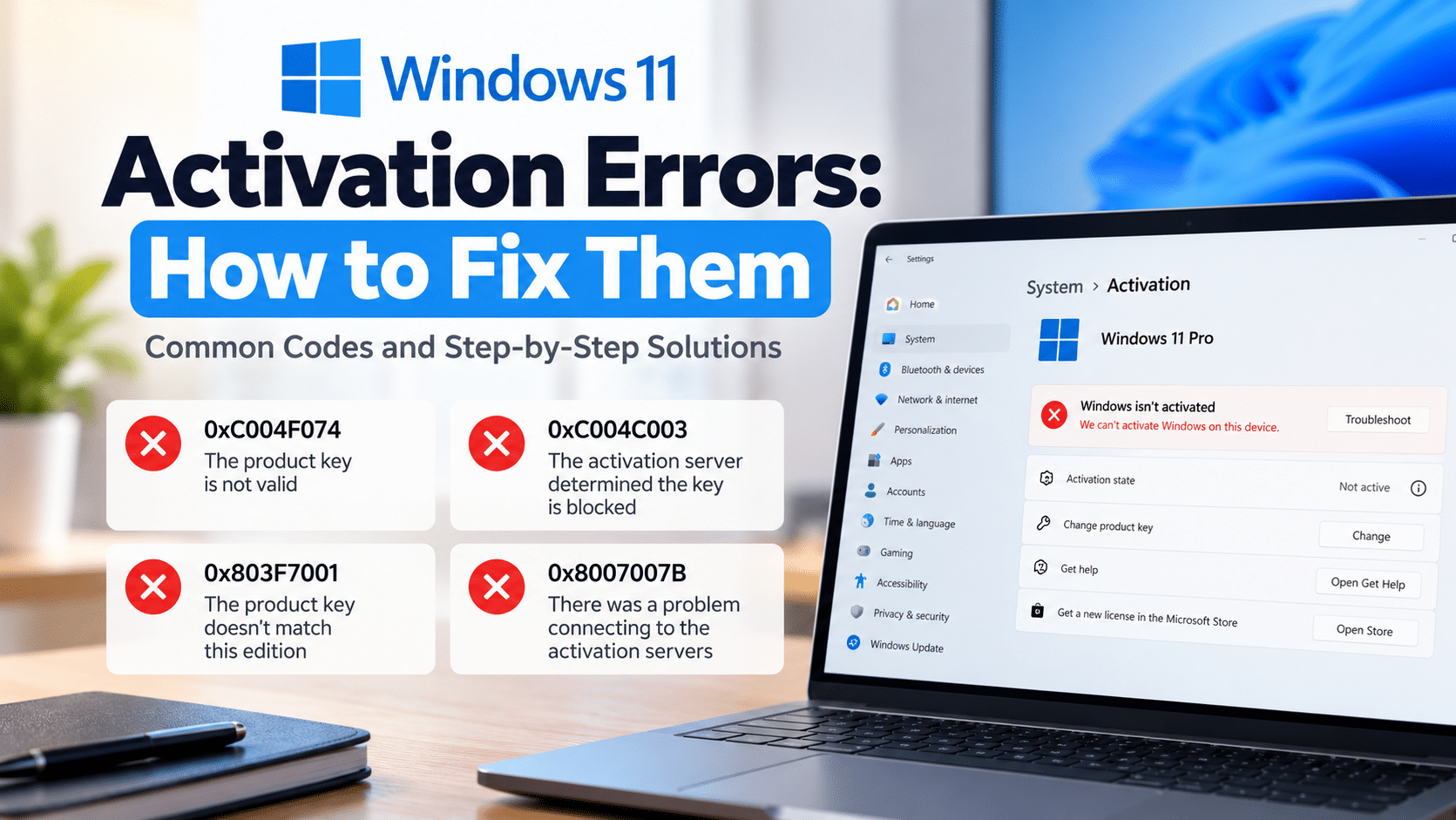
Windows activation errors can appear after installing Windows, entering a product key, changing computer hardware, or reinstalling an edition that doesn’t match your license. The message may include an error code, but understanding what it means is the first step toward resolving it.
If you’re seeing a Windows 11 activation error, don’t immediately purchase another product key. First, check your installed Windows edition, activation status, and the exact error message. Some problems can be resolved using Microsoft’s built-in troubleshooting tools, while others require a compatible license or help from your device manufacturer, organization, or seller.
This guide explains how to check your activation status, troubleshoot common Windows 11 activation errors, and determine when you need further assistance.
How to Check Your Windows 11 Activation Status
Before trying a fix, confirm which Windows edition is installed and what activation message appears.
- Open Start → Settings.
- Select System.
- Select Activation.
- Check the Windows edition and the activation status displayed on the page.
- If an error appears, write down its exact code and message.
Windows may show that it is activated, activated with a digital license, activated with a digital license linked to your Microsoft account, or not activated. The message helps you determine what to do next.
You can follow Microsoft’s official Windows activation guide for more information about these statuses.
Before You Try to Fix an Activation Error
A few basic checks can help you avoid unnecessary changes.
Confirm your Windows edition
Check whether your PC is running Windows 11 Home or Windows 11 Pro. The license must match the installed edition.
For example, a Home license does not activate Windows 11 Pro. If the wrong edition was installed, you may need to install the edition that matches your license or follow the supported upgrade process.
Our guide to Windows 11 Home vs Pro explains the main differences between the editions.
Check your internet connection
Some activation methods require an internet connection. Confirm that your device can access the internet and that a network or firewall problem isn’t preventing activation.
Check Windows for updates
Open Settings → Windows Update and check for available updates. Install applicable updates and restart if requested.
Keep your error code
Write down the complete code and message before troubleshooting. If the error changes after you run a troubleshooter, use the new code when looking for the next step.
How to Fix Windows 11 Activation Errors
Method 1: Run the Activation Troubleshooter
The Activation Troubleshooter is Microsoft’s recommended starting point for many Windows activation problems.
- Sign in using an administrator account.
- Open Settings → System → Activation.
- If Windows is not activated and the Troubleshoot option is available, select it.
- Follow the instructions shown by the troubleshooter.
- Review the result and check your activation status again.
Depending on your Windows version and the problem, the troubleshooting process may open diagnostics through Microsoft’s Get Help experience.
The Troubleshoot option is generally available when Windows is not activated. If Windows is already activated, you may not see it.
Read Microsoft’s instructions for using the Windows Activation Troubleshooter.
Method 2: Check the Product Key and Installed Edition
If you entered a product key and Windows rejected it, confirm that the key is intended for the Windows edition installed on your PC.
- Open Settings → System → Activation.
- Check the installed edition.
- If you have a compatible product key, select Change product key when that option is available.
- Enter the key carefully and follow the on-screen instructions.
- If the same error appears, record the code and consult Microsoft’s guidance rather than repeatedly trying different keys.
A product key for the wrong edition may be rejected even if the key itself is valid for another Windows edition.
If you purchased a key from a seller, keep your order information and contact the seller through its support channel when appropriate.
Method 3: Check for an Edition Mismatch
An edition mismatch can occur when Windows is installed with an edition that does not match the license associated with the device.
For example, a computer with a Windows 11 Home digital license may have Windows 11 Pro installed. The Home digital license does not automatically activate Pro.
To investigate:
- Open Settings → System → Activation.
- Check the installed edition and activation message.
- If the error indicates an edition mismatch, check which edition your license covers.
- Use Microsoft’s supported instructions to install the correct edition or upgrade to the appropriate edition.
Don’t assume that entering the same key repeatedly will resolve an edition mismatch. Confirm the license and installed edition first.
Method 4: Check Your Digital License After a Hardware Change
A significant hardware change, such as replacing a motherboard, can prevent Windows from finding the license associated with your device.
If you recently changed hardware:
- Sign in to Windows with the Microsoft account associated with the digital license, if applicable.
- Open Settings → System → Activation.
- Select Troubleshoot, if available.
- Follow the instructions for reactivating Windows after a hardware change.
- Review the devices or options presented by the troubleshooter and follow the applicable instructions.
Not every license can be transferred to a different device. Your eligibility depends on the license terms and the circumstances of the hardware change.
See Microsoft’s guide to reactivating Windows after a hardware change.
Method 5: Check Network or Activation-Service Problems
Some activation errors can occur when Windows cannot communicate with the activation service.
First, confirm that your internet connection works normally. If you use a work-managed computer, a company network or volume activation setup may also be involved.
If Microsoft reports a temporary service issue, follow its guidance and try again later. Don’t assume every activation error is caused by a network problem; the exact error code matters.
Common Windows 11 Activation Error Codes and Their Solutions
The correct fix depends on the error displayed on your device. These are examples of common codes documented by Microsoft.
| Error code | What it may indicate | What to check |
|---|---|---|
0x803F7001 | Windows cannot find a valid license for the device | Check the license and product key, or review the available purchase or activation options |
0xC004F213 | Windows cannot find a product key on the device | Check your digital license, product key, and any recent hardware changes |
0xC004F212 | The product key is incompatible with the installed edition | Confirm that the installed edition matches the license |
0xC004F210 | The product key or digital license may be for a different Windows edition | Check the edition and follow the supported installation or activation process |
0xC004C003 | The entered key is not valid for activation | Check the key’s source and usage; contact the seller or device manufacturer when appropriate |
0xC004FC03 | Windows may be unable to connect to the activation service | Check the internet connection and firewall configuration |
0xC004F074 | An activation or organizational volume-licensing issue may be involved | Check the installed edition; if the device belongs to an organization, contact its IT administrator |
Error codes can have more than one possible cause, and the exact message matters. The table is a starting point rather than a guaranteed diagnosis.
For the complete, current list of codes and Microsoft’s recommended steps, consult Get help with Windows activation errors.
What If Windows Says Your Product Key Is Invalid?
If Windows rejects a product key, first check whether it matches the installed edition and whether it was supplied for your intended use.
Try the following:
- Confirm the installed Windows edition.
- Check that you entered the key correctly.
- Review the exact error code.
- Follow Microsoft’s instructions for that code.
- If you purchased the key from a seller, contact the seller with your order details and error message.
An invalid-key message does not automatically establish why the key was rejected. It may involve the wrong edition, an unsuitable key, or another activation condition. Investigate the error before deciding on the next step.
Don’t post your full product key publicly or include it in an unprotected screenshot.
What If Windows Is Activated but You Still See an Error?
If Settings shows that Windows is activated, but another message continues to appear, first identify where the message comes from and what it says.
A warning related to organizational volume licensing may require help from your workplace’s IT administrator. An error associated with a recent hardware change may need the Activation Troubleshooter. Other messages may relate to a different application rather than Windows activation itself.
Don’t buy another license until you understand the message and have checked your activation status.
When Should You Contact Microsoft, Your Device Manufacturer, or the Seller?
Contact the appropriate support provider when the available troubleshooting instructions don’t resolve the problem.
- Microsoft Support: When Microsoft’s activation process or troubleshooter cannot resolve the issue.
- Device manufacturer: When Windows was supplied with a new computer and the activation issue appeared during initial setup.
- Your organization’s IT team: When the computer uses work-managed or volume-licensing activation.
- The seller: When you purchased a product key and need help investigating an error or understanding the applicable replacement or refund policy.
Keep your purchase receipt, installed Windows edition, error code, and relevant troubleshooting results available. Share product information only through an appropriate private support channel.
What to Check Before Buying Another Windows Key
Before spending money on another key, confirm what your computer actually needs.
Check the edition
Confirm whether you need Windows 11 Home or Windows 11 Pro. A key for one edition should not be assumed to activate the other.
Review the license information
Understand the product and license terms you are purchasing. Successful activation alone does not establish every right associated with a software license.
Understand the support and refund conditions
Check how the seller handles reported activation errors, what information support needs, and which replacement or refund conditions apply.
If you’re still comparing offers, read our guide to cheap Windows 11 Pro keys and what to check before buying.
If your specific issue is an edition upgrade rather than a general activation error, follow our step-by-step guide to upgrading Windows 11 Home to Pro.
Frequently Asked Questions
Why is Windows 11 saying it isn’t activated?
Windows may not find a matching digital license or valid product key, or it may be unable to complete activation. Check the installed edition, activation status, and exact error code before choosing a fix.
Can I fix Windows activation without buying another key?
Sometimes. The Activation Troubleshooter can resolve certain problems, including some issues involving digital licenses and hardware changes. The appropriate solution depends on the error and the license associated with your device.
Does a Windows product key have to match my edition?
Yes. A key for Windows 11 Home should not be expected to activate Windows 11 Pro. Check the installed edition and the product’s terms before using a key.
Why did Windows stop activating after a motherboard replacement?
A significant hardware change can prevent Windows from locating the license associated with the device. The Activation Troubleshooter may offer a reactivation route, depending on your license and circumstances.
What does error 0x803F7001 mean?
Microsoft says this code indicates that a valid Windows 11 license could not be found for the device. Check your digital license and product key, and follow Microsoft’s instructions for the exact situation.
What should I do if error 0xC004F074 appears?
This error can be associated with activation or organizational volume licensing. If the device belongs to a workplace or school, contact its IT administrator. Otherwise, check Microsoft’s current error guidance and verify that your product key matches the installed edition.
Does successful Windows activation prove that a license is genuine?
Not by itself. Microsoft explains that activation does not independently guarantee that software is genuine or that every licensing condition has been met. Consider the product source and applicable license terms as well.
Final Checklist for Windows 11 Activation Errors
Before concluding that you need another product key, make sure you have:
- Checked the Windows edition and activation status.
- Recorded the exact error code and message.
- Checked your internet connection and applicable updates.
- Used the Activation Troubleshooter if available.
- Confirmed that the product key or digital license matches the installed edition.
- Reviewed Microsoft’s instructions for the specific error.
- Contacted the appropriate support provider if the issue remains unresolved.
Windows activation problems can have different causes, so the most useful first step is to identify the actual error rather than trying random fixes. Check the installed edition, use Microsoft’s supported troubleshooting process, and verify the applicable license terms before purchasing another key.
For further guidance, explore our articles on Windows 11 Home vs Pro, upgrading Windows 11 Home to Pro, cheap Windows 11 Pro keys, and Windows OEM vs Retail licenses.
Related Posts
Windows Product Key vs Digital License: What’s the Difference?
-
Posted by
[email protected]
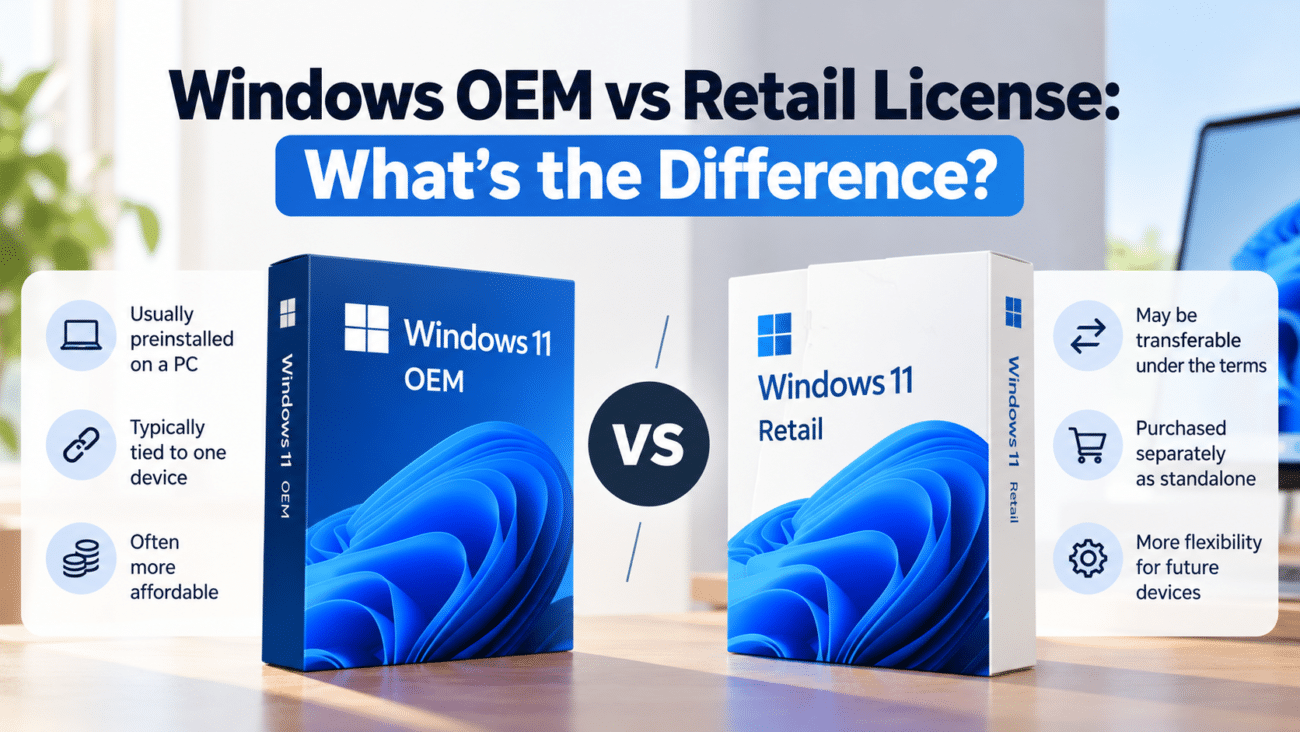
Windows OEM vs Retail License: What’s the Difference?
-
Posted by
Cheap Windows 11 Pro Keys: What to Check Before You Buy
-
Posted by