
Blog
Cheap Windows 11 Pro Keys: What to Check Before You Buy
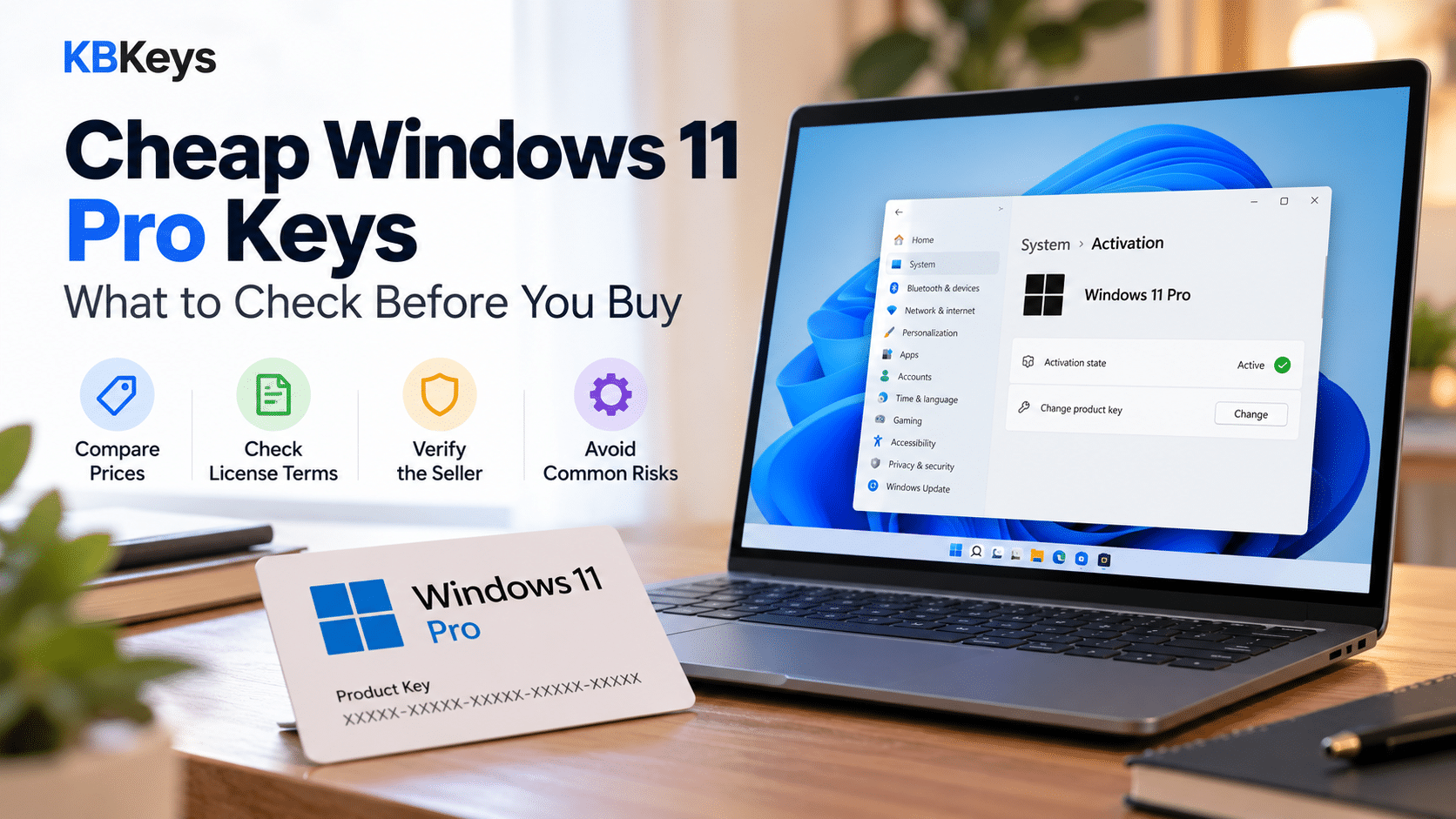
Buying a Windows license at a reasonable price can be confusing. You’ll find different prices, product descriptions, license terms, and delivery methods across online stores. So, how do you find a cheap Windows 11 Pro key without overlooking important details?
The best approach is to compare more than the price. Before you buy, check which Windows edition the product activates, understand the applicable license terms, review the seller’s support and refund policy, and make sure you know what happens if activation fails.
In this guide, we’ll explain what to check when comparing affordable Windows 11 Pro offers, why prices vary, and how to make a more informed purchasing decision.
What Is a Windows 11 Pro Product Key?
A Windows 11 Pro product key is a 25-character code used in the Windows activation process. It can help activate an eligible installation of Windows 11 Pro when the key and license conditions are appropriate.
However, a product key and a license are not necessarily the same thing. The key is used during activation, while the applicable license terms determine how the software may be used.
Microsoft also explains that successful activation does not, by itself, guarantee that a copy of Windows is genuine or properly licensed. For that reason, you should consider the product details and the seller’s terms alongside the activation process.
For more information, read Microsoft’s guide to activating Windows.
Where Can You Find a Cheap Windows 11 Pro Key?
There are several places to start your search. The right option depends on your budget, the license you need, and the level of support you expect.
1. Microsoft’s Official Store
Microsoft’s official store is a useful starting point because it provides the software offer, purchase information, and Microsoft’s own support resources.
Check the current Windows 11 Pro purchase page to see the available options and current US pricing.
The official price also gives you a reference point when comparing other offers. If another seller lists a much lower price, investigate what is included and which license terms apply before deciding.
The official store may not always be the lowest-priced option, but it is a straightforward place to review Microsoft’s own offering.
2. Established Software Retailers
You can also compare offers from software retailers that clearly explain their products, terms, delivery process, and customer support.
Before purchasing, check that the seller identifies the correct Windows edition and explains the license being offered. Look for accessible support information and a written refund policy.
Do not assume that a seller is authorized by Microsoft simply because its website looks professional or displays Microsoft branding. Any claim of authorization should be supported by verifiable information.
3. Online Stores With Clearly Stated Product Terms
Some online stores offer digital software products delivered electronically. Delivery can be convenient, but the delivery method alone does not establish whether a product is properly licensed.
Before placing an order, find out exactly what the seller is supplying, what conditions apply to the license, and what assistance is available if the key does not work as expected.
If a product listing leaves important questions unanswered, ask the seller before purchasing.
Why Do Windows 11 Pro Key Prices Vary?
A large price difference does not automatically prove that a product is legitimate or illegitimate. It does, however, give you a reason to investigate.
License type and usage rights
Windows products may be offered under different license arrangements. The applicable terms can affect how a license may be used and whether it can be transferred to another device.
Do not assume that a product described as Retail, OEM, or another license type provides particular rights without checking the terms that apply to it.
Promotions and retailer pricing
Retailers may offer temporary discounts or different prices. Compare the actual product details, not just the headline price or percentage discount.
Check whether the offer applies to the edition you need and whether there are any conditions that affect your purchase.
Restrictions associated with a license
Some software keys are intended for particular licensing arrangements or environments. A low price is not sufficient evidence that a key can be used for your intended purpose.
If the seller cannot explain the license terms or the intended use of the product, consider choosing an offer with clearer documentation.
Counterfeit, misused, or unsuitable keys
Some low-priced listings may involve counterfeit software, keys obtained without proper authorization, or products that do not provide the usage rights a buyer expects.
Microsoft warns buyers about counterfeit software and recommends purchasing from Microsoft or a seller they know and trust. Read Microsoft’s guidance on genuine Windows software.
The goal is not to assume every discounted key is problematic. It is to understand what is being sold before paying for it.
7 Things to Check Before Buying a Cheap Windows 11 Pro Key
Before choosing an offer, use this checklist to compare the product, seller, and purchase conditions.
1. Confirm the Windows edition
Check whether you need Windows 11 Home or Windows 11 Pro.
A key for the wrong edition may not activate the Windows installation you have. If you’re upgrading from Home to Pro, make sure the product is suitable for that upgrade.
You can compare the feature differences in our guide to Windows 11 Home vs Pro.
2. Read the license terms
Review the product description and the applicable license terms. Look for information about intended use, transfer restrictions, and any limitations that may apply.
If these details are unclear, ask the seller for clarification before purchasing.
3. Check the seller’s identity and contact information
Look for a clear business identity, a working support channel, and accessible policies.
Check whether the seller explains how digital products are delivered and how to obtain help if a problem occurs. Avoid relying solely on a low price, a professional-looking website, or a badge that cannot be independently verified.
4. Understand the delivery process
Confirm how you will receive the product after payment. For digital products, this may involve delivery by email or instructions on the order page.
Check what information is included and whether the seller explains the activation process.
5. Review the refund and replacement policy
Read the refund policy before placing your order. Understand what happens if a key does not work, if a replacement is offered, or if you purchase the wrong edition.
Different sellers have different conditions. Do not assume that every digital product is refundable or that every seller offers the same replacement process.
6. Check support availability
Make sure you know how to contact the seller if you encounter an issue.
A useful support process should explain what information to provide, how an activation problem will be investigated, and what happens if the issue cannot be resolved.
Never post your complete product key publicly. Share order information only through an appropriate private support channel.
7. Be cautious of unrealistic claims
Treat claims such as guaranteed activation on every computer, unrestricted transferability, or unusually large discounts as reasons to ask more questions.
A product page should give you enough information to understand what is being sold. If the seller cannot explain the product or its terms, consider another offer.
How to Check Whether a Windows 11 Pro Key Works
After purchasing a product, follow the appropriate Windows activation process and pay attention to the result.
If you’re upgrading an activated Windows 11 Home installation, Microsoft provides instructions for changing to Pro using a compatible product key.
- Open Settings.
- Select System.
- Select Activation.
- Review your current Windows edition and activation status.
- If the upgrade is appropriate for your installation, follow Microsoft’s instructions for entering a compatible Pro product key.
- After the process finishes, check the edition and activation status again.
Follow Microsoft’s official guide to upgrading Windows Home to Windows Pro.
Remember that activation and licensing are related but distinct matters. A successful activation result is useful, but it should not be treated as conclusive proof of every license right.
What If a Windows 11 Pro Key Doesn’t Work?
If a key is rejected, do not immediately assume that the product is counterfeit. First, identify the error and check the edition and activation conditions.
Confirm the installed edition
Check whether the device runs Windows 11 Home or Pro. A key for one edition may not activate another edition.
Check the activation message
Read the exact error message or code displayed by Windows. Different errors can indicate different issues, including edition mismatches or activation problems.
Follow Microsoft’s troubleshooting guidance
Use Microsoft’s Windows activation error guide to identify the appropriate next step.
Contact the seller if you purchased the key
Keep your order confirmation and explain the issue through the seller’s support channel. Follow the seller’s stated replacement or refund process.
Do not share the complete product key in public forums or comments.
Is a Cheap Windows 11 Pro Key Worth Buying?
It can be worth considering an affordable offer when the product details are clear and the license terms match your intended use. However, price alone is not enough to decide whether an offer is suitable.
Compare the following before making your decision:
- The exact Windows edition.
- The license terms and intended use.
- The seller’s identity and support process.
- The delivery method.
- The refund and replacement conditions.
- The information available if activation fails.
A slightly more expensive offer with clear terms and dependable support may be a better fit than a cheaper product whose conditions are unclear.
Frequently Asked Questions
Where can I buy a cheap Windows 11 Pro key?
Start by comparing Microsoft’s official offer with other retailers that provide clear product details, license terms, and support information. Do not choose solely on the basis of price.
Are cheap Windows 11 Pro keys always legitimate?
No. A low price alone does not establish whether a key is legitimate or illegitimate. Investigate the seller, product details, and applicable license terms before purchasing.
Does successful activation mean my Windows license is genuine?
Not necessarily. Microsoft explains that activation does not by itself guarantee that Windows is genuine. Consider the applicable licensing information and the product’s source as well.
Can I use a Windows 11 Home key to activate Pro?
A Home product key does not activate an installation of Windows 11 Pro. You need an appropriate license for the edition you intend to use.
Can I upgrade from Windows 11 Home to Pro later?
Yes, eligible installations can be upgraded using Microsoft’s supported upgrade process. Read our step-by-step Windows 11 Home-to-Pro upgrade guide before beginning.
What should I do if my product key fails?
Confirm the installed edition, check the error message, follow Microsoft’s troubleshooting guidance, and contact the seller through its support channel if you purchased the product from a retailer.
Should I buy a Windows 11 Pro key from an unknown seller because it is cheaper?
Be cautious. If the seller does not clearly explain the product, license terms, support process, or refund conditions, you may not have enough information to make a confident decision.
Compare Windows 11 Pro Options at KBKeys
If you’re comparing Windows 11 Pro options, you can review the details on the KBKeys Windows 11 Pro product page and browse the broader Windows 11 category.
Before ordering, read the product description and applicable policies carefully. Confirm that the edition fits your requirements and that you understand the delivery, support, and refund conditions.
For more guidance, read our Windows 11 Home vs Pro comparison or our guide to upgrading Windows 11 Home to Pro.
The best buying decision balances price, suitability, clear licensing information, and the support available if something goes wrong. Take time to compare those details before purchasing a Windows 11 Pro key.
Related Posts
Windows Product Key vs Digital License: What’s the Difference?
-
Posted by
[email protected]
How to Fix Windows 11 Activation Errors: Common Codes and Solutions
-
Posted by
Windows OEM vs Retail License: What’s the Difference?
-
Posted by
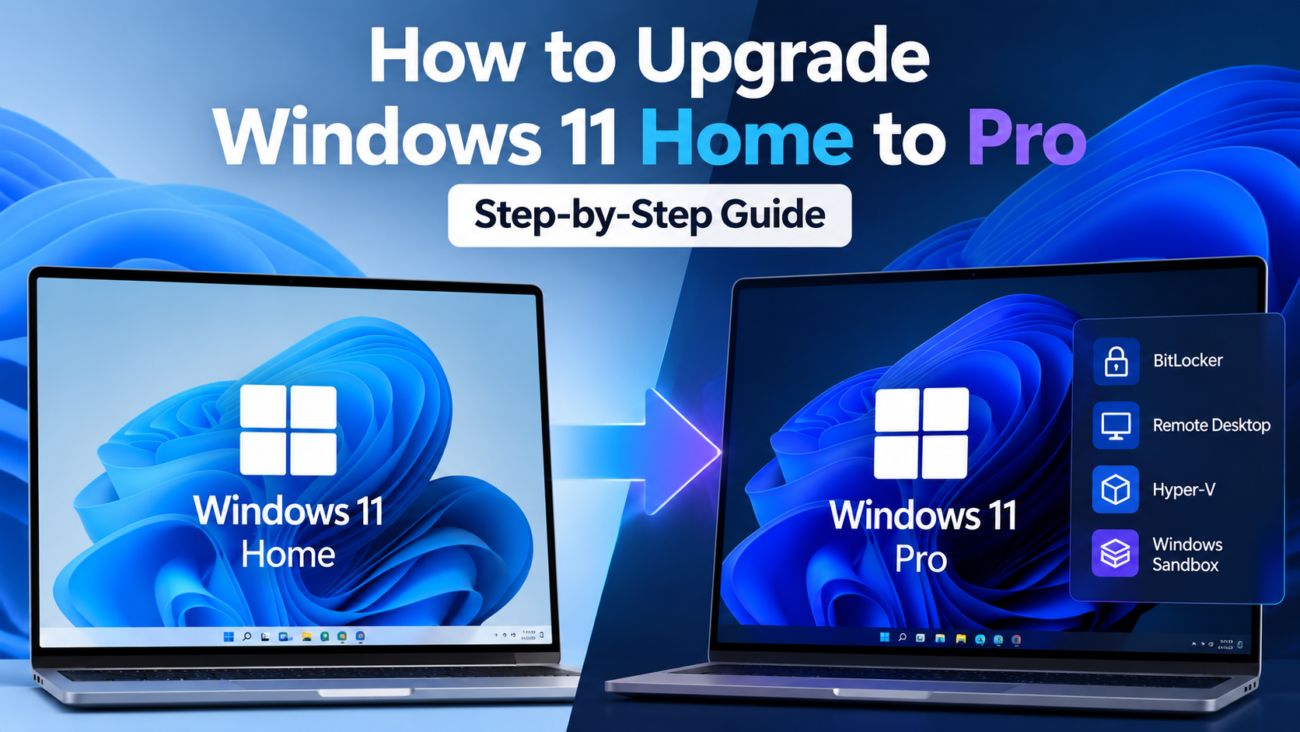
How to Upgrade Windows 11 Home to Pro: Step-by-Step Guide
-
Posted by
Thanks for the guide man. And as explained kbkeys works good.