
Blog
Windows Product Key vs Digital License: What’s the Difference?
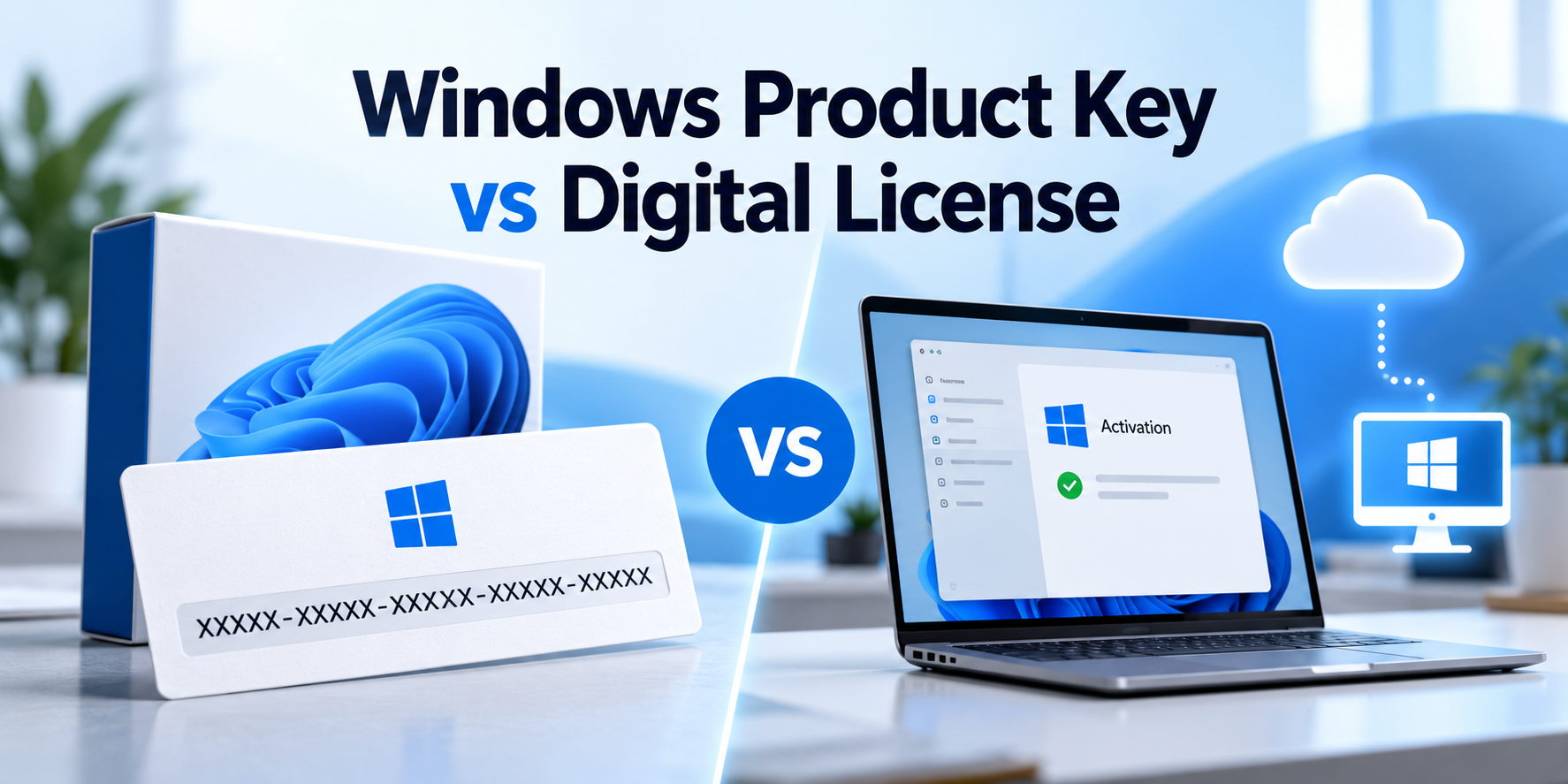
Windows product key vs digital license: both terms relate to Windows activation, but they work differently. A product key is a code used during activation, while a digital license is an electronic entitlement that can allow Windows to activate without manually entering a key.
A product key may be provided when you purchase Windows or included with a computer, depending on how the operating system was licensed.
When you enter a valid product key, Windows uses it as part of the activation process. The key must be compatible with your Windows edition and license.
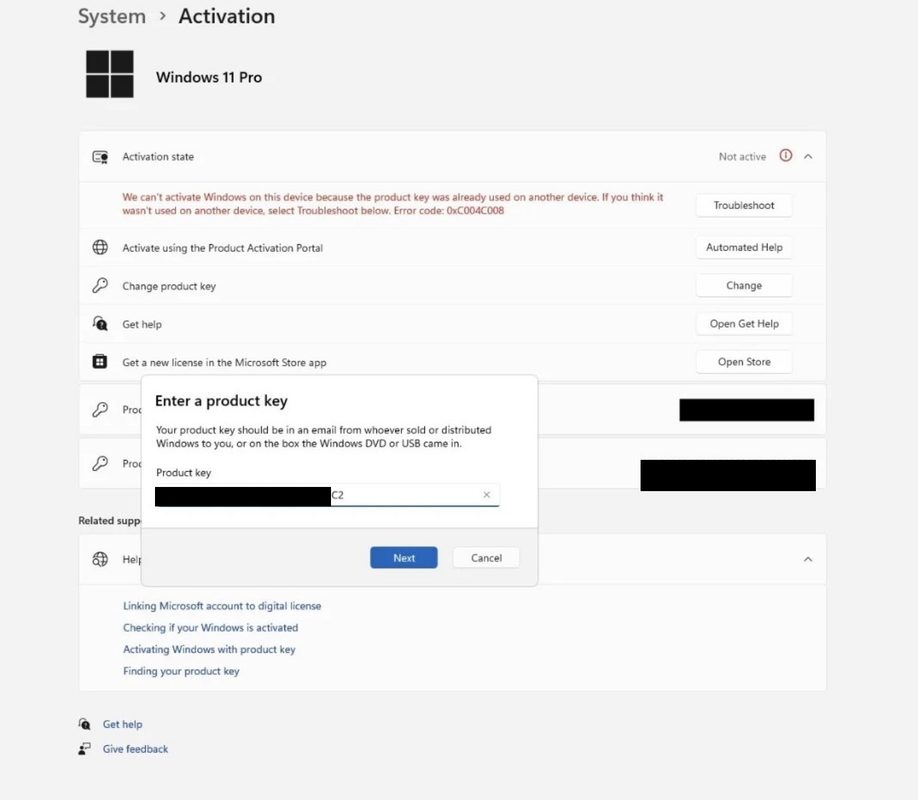
When Do You Need a Windows Product Key?
You may need a Windows product key when:
- Activating a newly installed copy of Windows.
- Purchasing a license for a Windows edition you want to use.
- Upgrading from Windows Home to Pro when your existing license does not cover the Pro edition.
- Troubleshooting certain activation problems.
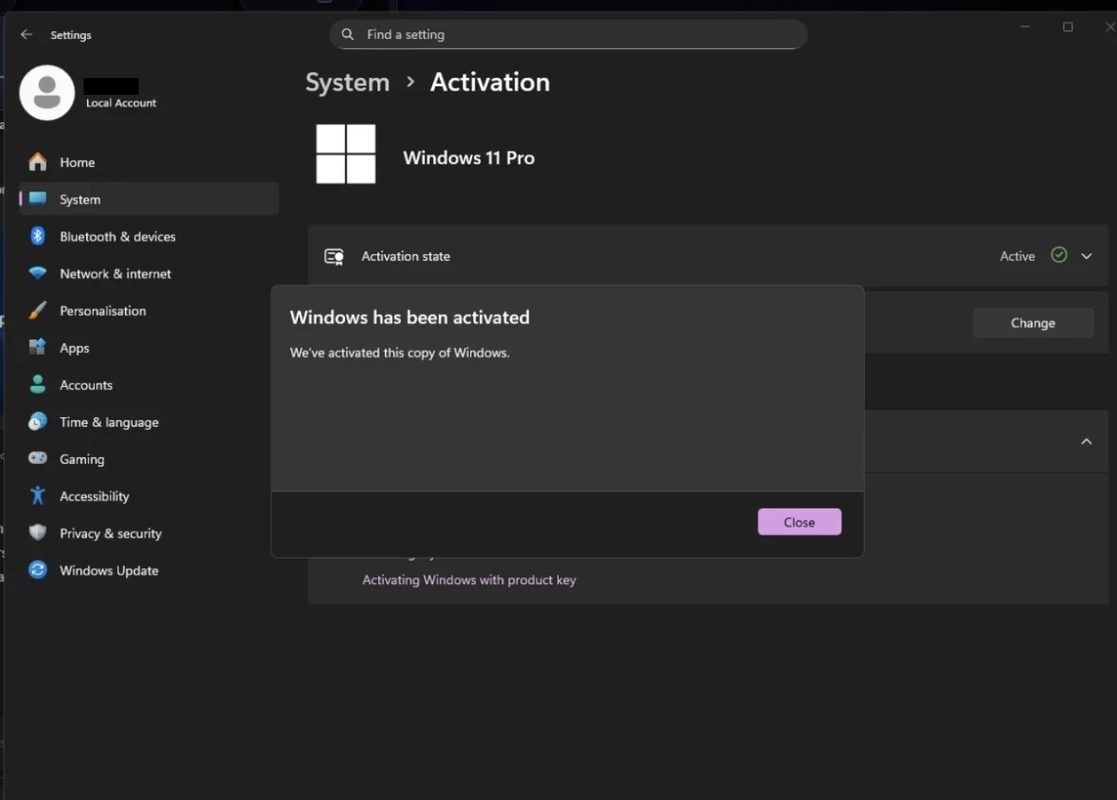
However, you don’t always need to enter a product key manually. If your device already has a valid digital license for the installed edition, Windows may activate automatically.
If you’re planning to upgrade your edition, read our guide on how to upgrade Windows 11 Home to Pro for step-by-step instructions.
What Is a Windows Digital License?
A Windows digital license is an electronic entitlement that allows Windows to activate without requiring you to enter a product key manually.
It is associated with your device and the applicable Windows edition. Linking your Microsoft account to the digital license can also help you reactivate Windows after certain hardware changes.
For example, if your PC already has a valid digital license for Windows 11 Home, you can usually reinstall the same edition without entering a product key during setup. After connecting to the internet, Windows may activate automatically.
A digital license does not mean Windows is automatically free. It must be associated with a valid licensing entitlement, such as an eligible upgrade or qualifying purchase.
For more information, see Microsoft’s official guide to activating Windows.
Windows Product Key vs Digital License: Key Differences
Although both are related to Windows activation, a product key and a digital license serve different purposes.
Understanding the Windows product key vs digital license distinction helps you determine whether you need to enter a key manually or can activate Windows using an existing digital license.
| Feature | Windows Product Key | Digital License |
|---|---|---|
| Format | Usually a 25-character code | Electronic activation entitlement |
| Manual entry | May be required | Usually not required |
| Activation | Used as part of the activation process | Windows checks the existing entitlement |
| Reinstallation | A valid key may be needed | Eligible devices can often reactivate automatically |
| Microsoft account | Not always required | Linking an account can help with eligible reactivation |
| Hardware changes | Depends on the license type | Reactivation depends on the license and hardware changes |
| Windows edition | Must match the applicable license | Must cover the installed edition |
The main difference between a Windows product key vs digital license is how Windows verifies your activation entitlement. A product key is entered as part of activation, while a digital license allows activation without manually entering a key when the device is eligible.
Important: A product key and a digital license are not necessarily mutually exclusive. A product key can be used to establish a digital license, depending on the circumstances.
Can You Activate Windows Without a Product Key?
Yes, in some situations.
If your computer already has a valid digital license for the Windows edition you’re installing, you can usually skip product-key entry during setup.
Follow these steps:
- Install the Windows edition covered by your existing license.
- Skip entering a product key when prompted, if that option is available.
- Connect your PC to the internet.
- Open Settings and select System.
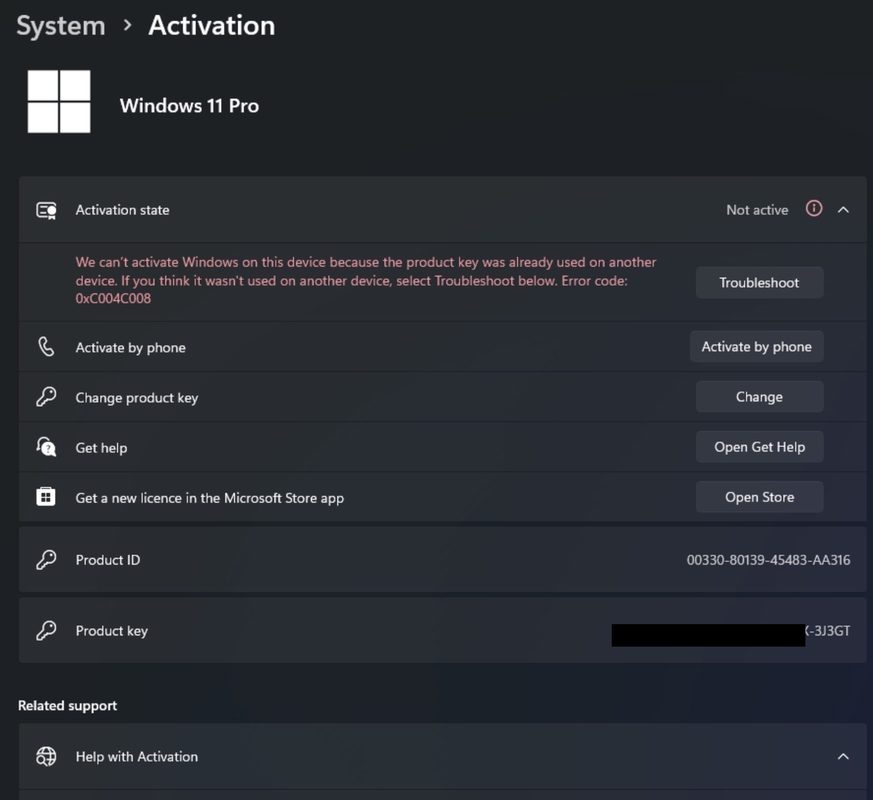
- Select Activation and check your activation status.
If Windows does not activate automatically, make sure you installed the correct edition and that your device is eligible for activation.
You may also need to troubleshoot an activation error or verify your license details.
What Happens If You Change Your Computer’s Hardware?
Significant hardware changes can affect Windows activation, particularly when you replace the motherboard.
If your digital license is linked to your Microsoft account, you may be able to reactivate Windows using the Activation troubleshooter.
To try this:
- Open Settings.
- Go to System and select Activation.
- Look for the Activation troubleshooter if it is available.
- Follow the on-screen instructions.
Reactivation is not guaranteed in every situation. The result depends on the license type, the hardware change, and the applicable licensing terms.
Microsoft provides further instructions in its guide to reactivating Windows after a hardware change.
Which Is Better: A Product Key or a Digital License?
Neither is automatically better because they describe different aspects of Windows activation.
A product key is useful when you need to activate Windows using a purchased key. A digital license makes activation more convenient when your device is eligible for automatic activation.
Your best option depends on your Windows edition, how you obtained your license, and whether you plan to reinstall Windows or change your hardware.
Before purchasing a Windows key, check that it matches your edition and comes with appropriate licensing rights.
If you need Windows 11 Pro, you can explore the Windows 11 Pro Retail Key at KBKeys and review the product details before purchasing.
Frequently Asked Questions
1. Is a digital license the same as a product key?
No. A product key is a code used during activation, while a digital license is an electronic entitlement that allows Windows to activate without manually entering a key.
2. Can I reinstall Windows with a digital license?
Usually, yes. If your device has a valid digital license, reinstall the same Windows edition and skip product-key entry when prompted. Connect to the internet afterward to check activation.
3. Is a Windows digital license permanent?
Its validity depends on the underlying license and applicable terms. Hardware changes and other eligibility conditions can affect activation.
4. Can I transfer a Windows license to another computer?
It depends on the license type and its terms. Retail and OEM licenses can have different transfer rights. A digital license alone does not determine whether a transfer is permitted.
5. How can I check whether Windows is activated?
In Windows 11, open Settings, select System, and then select Activation. The page displays your current activation status and may provide troubleshooting options.
6. Do I need to buy another product key if Windows is already activated?
Not necessarily. If Windows is activated with a valid license for your edition, you generally don’t need to buy another key. Check your activation status before making a purchase.
Final Thoughts
A Windows product key is a code, while a digital license is an electronic activation entitlement. Both are connected to Windows activation, but the process depends on your device, Windows edition, and license type.
Before purchasing a new key or reinstalling Windows, check your activation status and confirm that your license covers the edition you want to use. Understanding the difference can help you make a more informed decision and avoid unnecessary purchases.
Related Posts
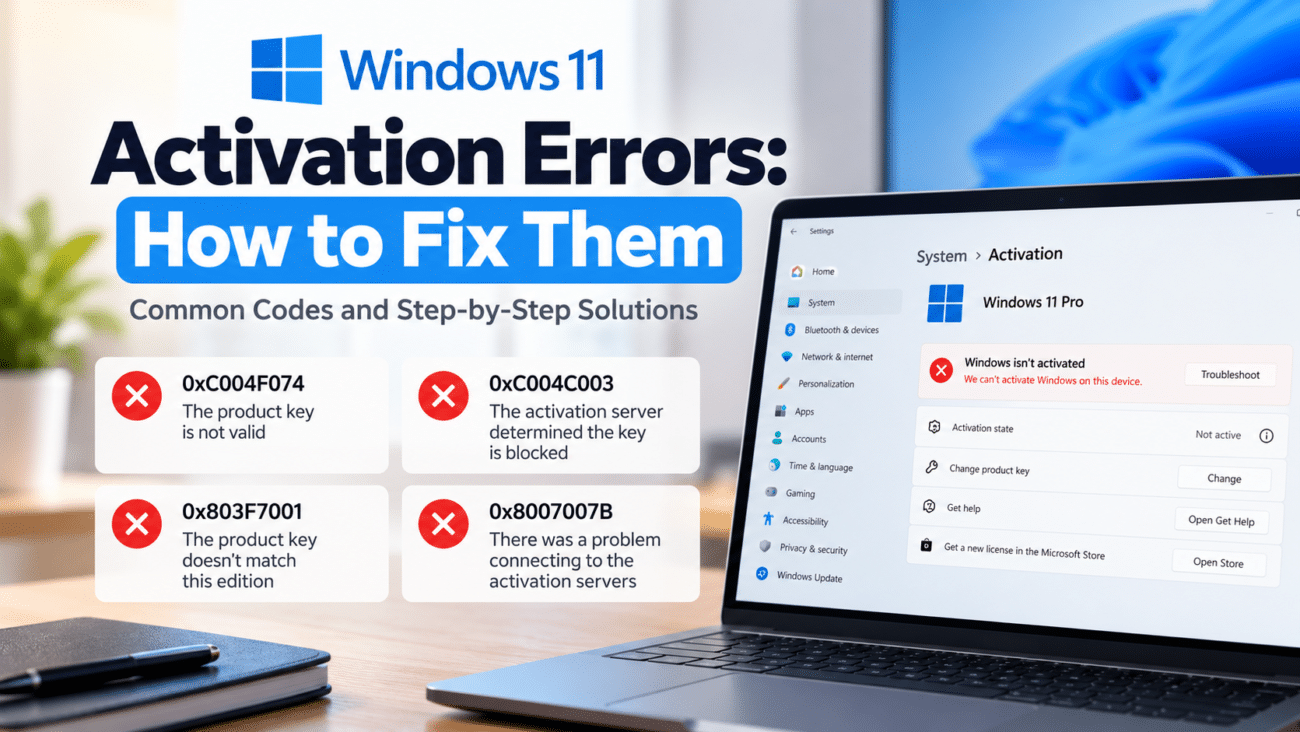
How to Fix Windows 11 Activation Errors: Common Codes and Solutions
-
Posted by
[email protected]
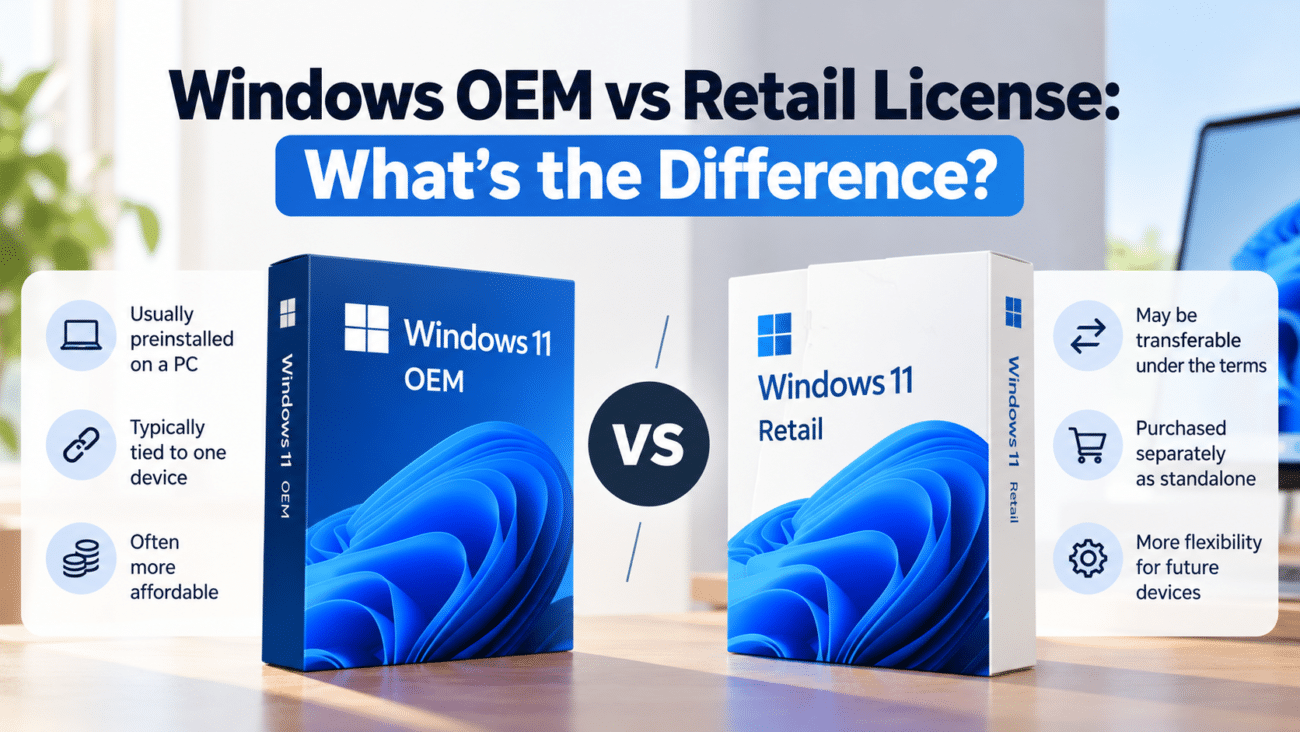
Windows OEM vs Retail License: What’s the Difference?
-
Posted by
Cheap Windows 11 Pro Keys: What to Check Before You Buy
-
Posted by
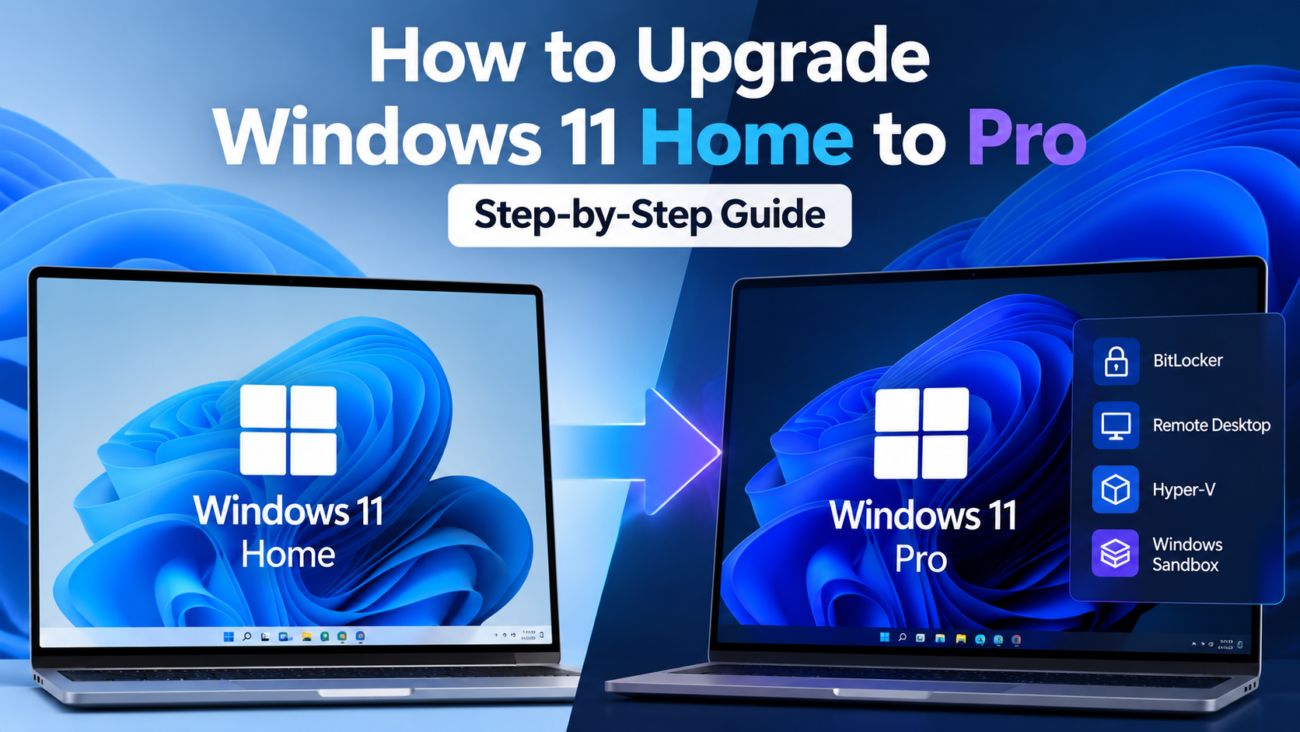
How to Upgrade Windows 11 Home to Pro: Step-by-Step Guide
-
Posted by